![Bildmarke_only_positive.png]](https://support.3dspark.de/hs-fs/hubfs/Bildmarke_only_positive.png?height=40&name=Bildmarke_only_positive.png)
This article explains how to add suppliers to your organization’s Supplier Panel in 3D Spark.
The 3D Spark Supplier Panel streamlines the request-for-quotation (RFQ) process for both buyers and suppliers.
Click here to learn more about the Supplier Panel
Supplier types
There are three supplier types:
1. Connected (live) suppliers: These suppliers have configured their offers in 3D Spark, so other organizations can view live indicative prices in the Supplier Panel.
2. Reverse-engineered suppliers: The buyer organization builds a pricing model for the supplier based on common knowledge or historical prices.
3. AI-modeled suppliers: The buyer organization adds suppliers without prior knowledge of their pricing model. 3D Spark’s AI then calculates indicative prices for orders.
Tip: You can mix reverse-engineered and AI-estimated production options. For example, you may have historical prices for one material-technology combination but not for another.
Adding a connected (live) supplier
-
Publicly connected suppliers appear automatically in the buyer organization’s Supplier Panel.
-
For non-public suppliers that 3D Spark connects on your behalf, contact the 3D Spark support team.
Adding a reverse-engineered supplier
This process has two steps.
Step 1 - Model the supplier’s pricing
Step 2 - Add the supplier to the panel
Step 1 - Model the supplier’s pricing
-
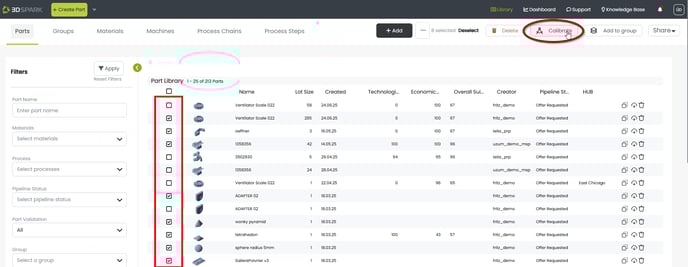
Upload at least 10 parts whose prices you know.
-
Go to Library ▸ select the parts ▸ Calibrate.
-
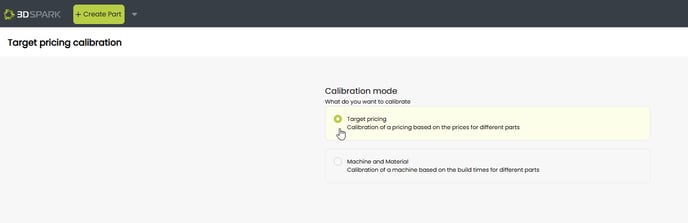
Under Calibration mode, choose Target pricing, then click Next.
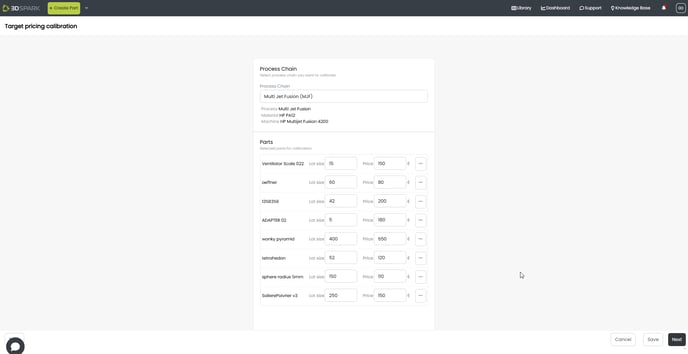
- In Process Chain, select the closest material and technology.
-
Enter the lot size and price per part for each part, then click Next.
For example, if 100 parts cost 2500€ in total, you should enter Lot size = 100 and Price = 25€
-
Review the parameters (they are not yet editable) and click Next again.

-
When the calibration results appear, click Save Results and give the pricing model a clear name.
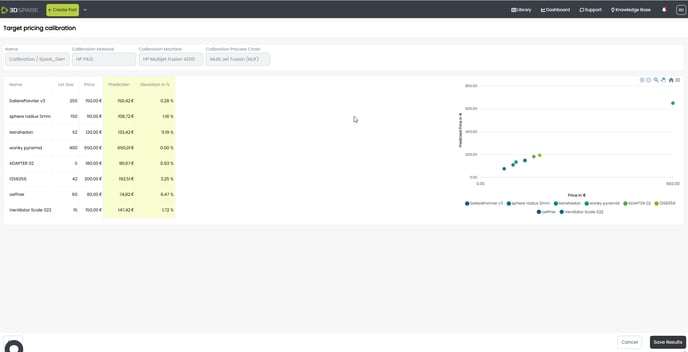
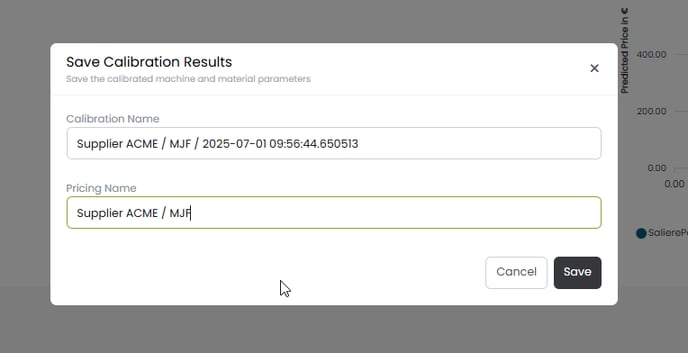
The pricing model is now saved and will be used in Step 2.
Step 2 - Add the supplier to the panel
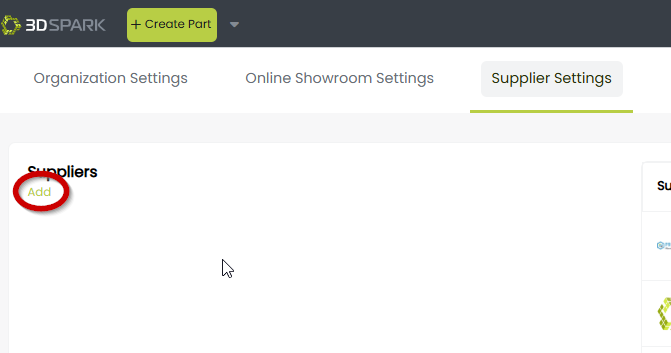
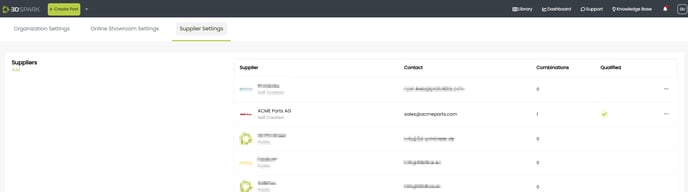
- Click your initials (top right) ▸ Settings ▸ Supplier Settings ▸ Add
or open an existing supplier, click the three dots, and choose Edit.
-
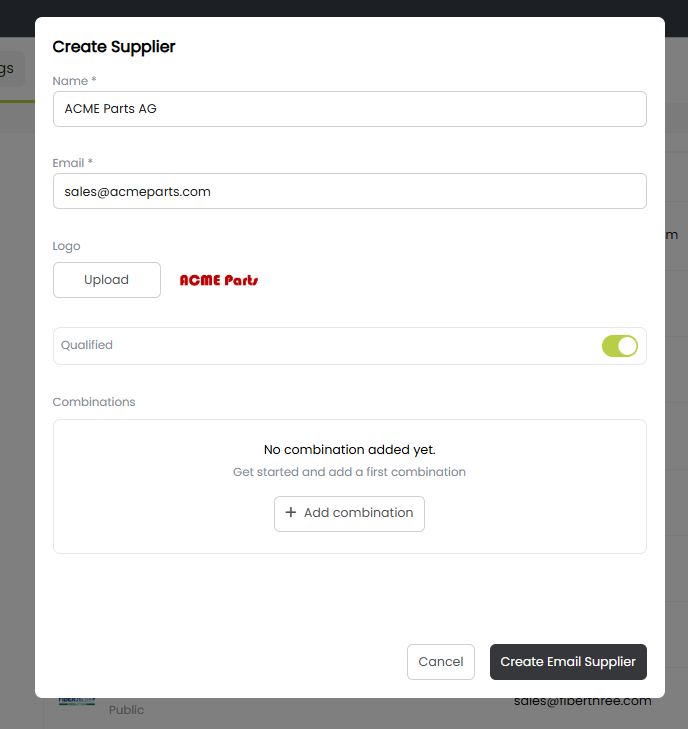
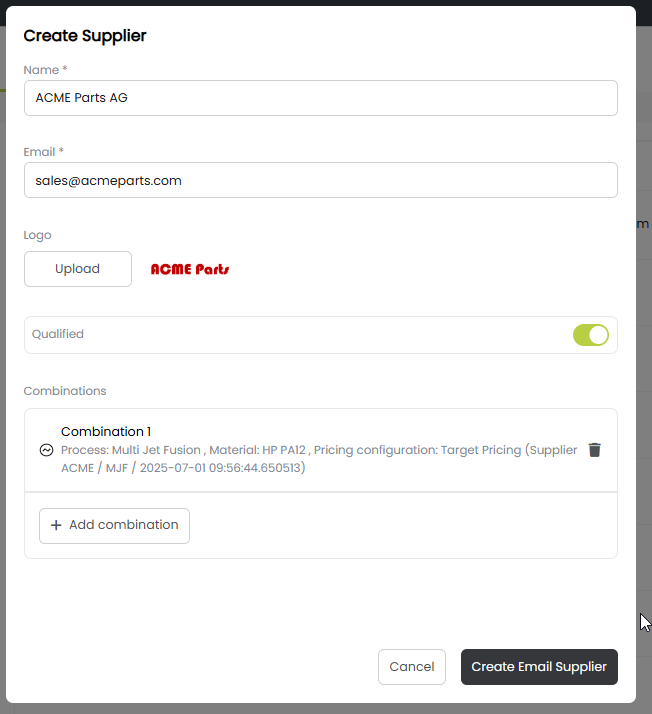
Enter or edit the supplier’s name, email, and optional logo. If applicable, mark the supplier as Qualified.
-
Click + Add combination.
-
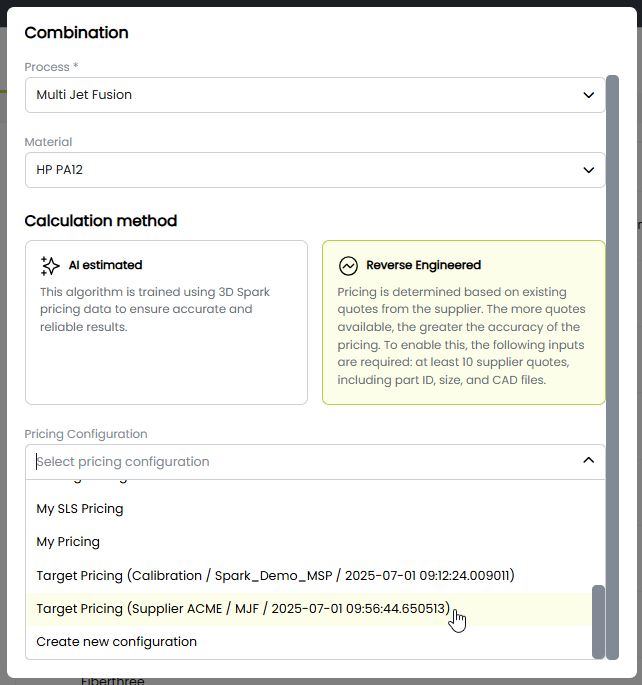
Select the closest technology and material, choose Reverse Engineered, then select the Pricing Configuration you created in Step 1.
-
Click Add combination; the new production option appears.
-
Add more combinations if needed, then click Create Email Supplier to finish.
The supplier is now added, and its indicative prices are visible in the Buy view (Click here for a guide).
Edit or delete the supplier in Settings ▸ Supplier Settings via the three-dot menu.
Adding an AI supplier
- Click initials (top right) ▸ Settings ▸ Supplier Settings ▸ Add
or open an existing supplier, click the three dots, and choose Edit. -
Enter or edit the supplier’s name, email, and optional logo. If applicable, mark the supplier as Qualified.
- Click + Add combination.
-
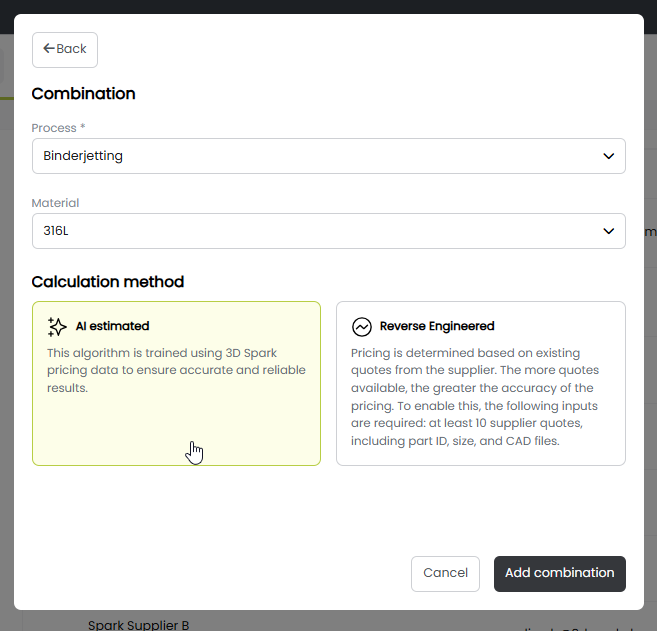
Select the closest technology and material, then choose AI estimated.
-
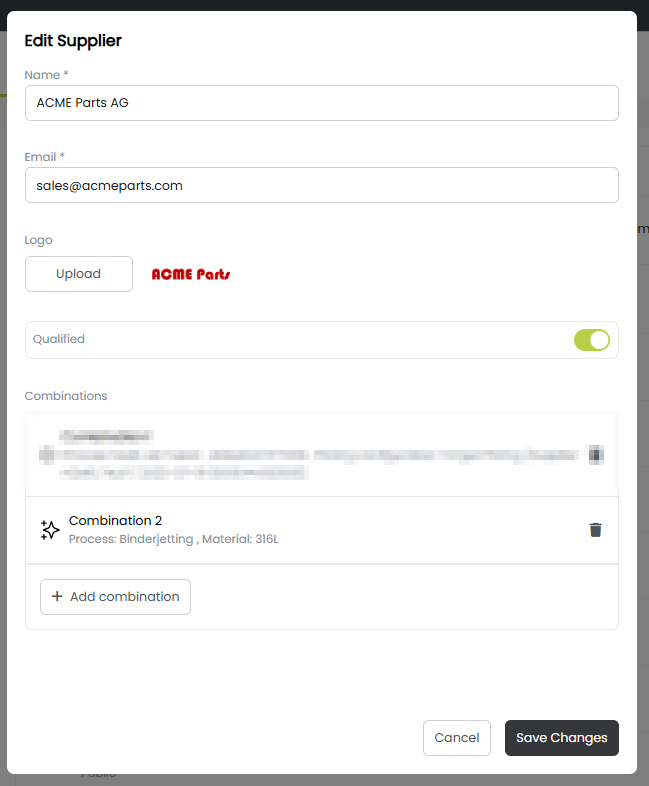
Click Add combination; the AI-estimated option appears.
-
Add further combinations if required, then click Create Email Supplier (for a new supplier) or Save Changes (for an existing supplier).
The supplier is now added, and its indicative prices are visible in the Buy view (Click here for a guide).
You can modify or remove the supplier anytime in Settings ▸ Supplier Settings using the three-dot menu.