![Bildmarke_only_positive.png]](https://support.3dspark.de/hs-fs/hubfs/Bildmarke_only_positive.png?height=40&name=Bildmarke_only_positive.png)
There are two main reasons to upload multiple parts.
1- Receiving an order with multiple parts
2- Part Screening or Batch Screening projects, where usually hundreds or thousands of parts are analyzed for feasibility / printability.
Independent of the reason, 3D Spark offers the Groups feature, where the user can drag & drop multiple CAD files.
Preparation
You can automate the assignment of Production Options to your uploaded files through one of the following methods:
1. Create an Analysis Profile: Set up an Analysis Profile and designate it as the "default" prior to uploading your files.
2. Utilize an Auxiliary Spreadsheet: Use a supplementary spreadsheet to specify which parts should be analyzed with particular materials, technologies, or Production Options. You can also fill in the information fields (category fields) of the parts automatically.
Link to the auxiliary spreadsheet can be found in the 3D Spark platform, under Groups:
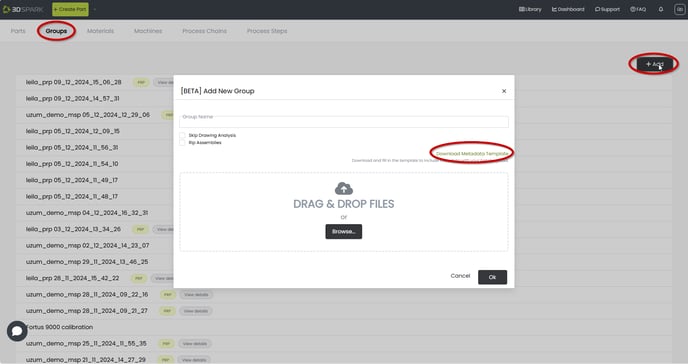
How to fill in the auxiliary spreadsheet
-xlsx%20-%20Excel-png.png?width=688&height=66&name=2025-02-18%2015_10_58-metadata_template%20(6)-xlsx%20-%20Excel-png.png)
Let's review meaning of each column.
name: The name of the part as you want it to appear after uploading to 3D Spark. It does not have to be the same as the filename, but it is common practice to do so.
cad: The exact filename of your CAD file, together with its extension. Example: impeller_04.stp
lot_size: You can automatically assign a lot size to a part
current_mat: You can assign a default 3D Spark to a part. Please note the material name must be given exactly as it is listed in 3D Spark. We recommend using a default Analysis Profile (explained above) instead of this field.
created: The upload date of a part can be adjusted in this field, for example if already analyzed parts are added for dashboarding or reporting purposes. Input format: DD/MM/YYYY
info: This fills in the Description field of a part. Reminder: Description field is found in Input page for single part upload.
part_stat: Validation status of a part can be adjusted here.
start_analysis: Analysis can be started automatically for this part if 'true' is selected. This feature is especially useful if a default Analysis Profile is used for the batch upload.
combo_category_****: These drop-down fields come from your organization's settings. You can automatically fill in the content of a combo (drop-down) category by using this field.
text_category_****: These free text fields come from your organization's settings. You can automatically fill in the content of a text category by using this field.
Uploading
Go to Library > Groups and click Add
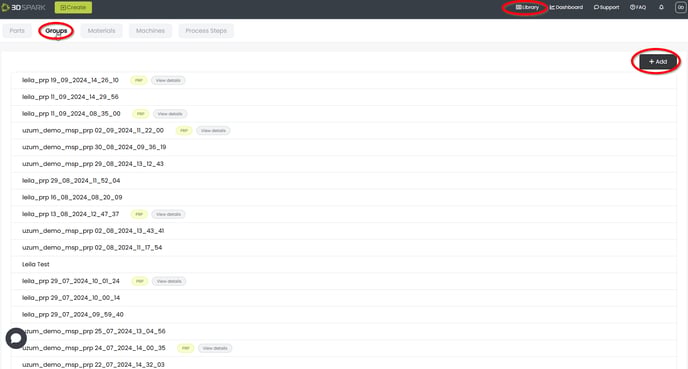
Assign a name to your Group and then drag and drop all your CAD files into the designated Drag & Drop area. If you are using the auxiliary spreadsheet, include it as well. Please remember to select all files, and drag and drop them together in one single attempt. Please note that the Group Upload feature does not support folder uploads.
Files will be uploaded automatically one after the other. You can see the parts in a group by clicking the group name under Library > Groups
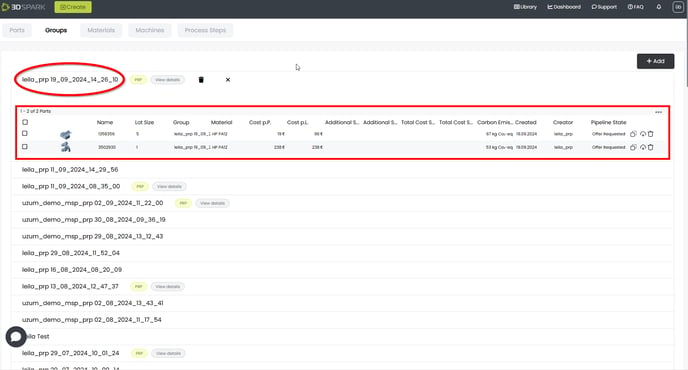
If needed, you can click on each part and analyze them individually.
Excel Export and Custom Documents from multiple parts
You can export a spreadsheet of the parts in a group by clicking the 'Share' button on the top-right of the page. It is a good practice to customize your part library view before the export. How to: Click here
In addition, if your organization has established custom documents for handling multiple parts, you can easily generate them by selecting the relevant parts, navigating to the Share option in the top-right corner, and choosing the document you wish to create.
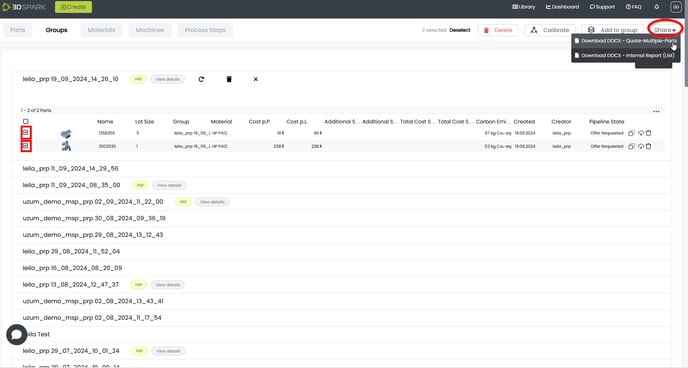
Find out more about Custom Documents here.