![Bildmarke_only_positive.png]](https://support.3dspark.de/hs-fs/hubfs/Bildmarke_only_positive.png?height=40&name=Bildmarke_only_positive.png)
3D Spark’s Pricing Configurator lets you create dynamic, rule-based pricing models for your manufactured parts. By defining conditions and parameters—such as geometry, material, or production requirements—you can accurately calculate prices and streamline your quoting process. This guide will show you how to set up, manage, and refine your pricing rules.
✨ Click here for step-by-step instructions for setting up and using your pricing configurations.
Scroll down to learn more about Combined Pricing Configurations.
Pricing Configurator Parameters / Operators
| Operator | Explanation | Usage examples |
| + | Plus | lot_size + 5 |
| – | Minus | total_mass – support_mass |
| * | Times | cost_pp * 1.6 |
| / | Divided by | total_mass / lot_size |
| ^ | Power | part_mass ^ 2 (square of part mass) |
| exp(x) | e to the power of the parameter x | exp(2) (Result=7.389) |
| ln(x) | Natural logarithm of paramater x | ln(lot_size) |
| log(x) | Logarithm of x to base 10 | log(lot_size) |
| < | Smaller than | part_vol < 1000 |
| <= | Smaller than or euqual to | part_vol <= 1000 |
| > | Larger than | part_vol > 1000 |
| >= | Larger than or euqual to | part_vol >= 1000 |
| = | Equal to | lot_size = 1 |
| & |
AND operator |
(part_vol > 100) & (lot_size < 15) Please do not forget the parentheses |
|
| |
OR operator |
(part_vol > 100) | (lot_size < 15) Please do not forget the parentheses |
| Property | Parameter |
| Part Volume (cm³) | part_vol |
| part_volume | |
| Part Surface Area (cm²) | part_srf_area |
| part_surface | |
| Bounding Box X (mm) | bb_x |
| Bounding Box Y (mm) | bb_y |
| Bounding Box Z (mm) | bb_z |
| Lot Size | lot_size |
| Part Mass (g) | part_mass |
| Surface Area Requiring Supports (mm) | sup_srf_area |
| support_surface | |
| Support Volume (cm³) | sup_vol_real |
| Support Mass (g) | sup_mass |
| support_mass | |
| Oriented Bounding Box X (mm) | or_bb_x |
| Oriented Bounding Box Y (mm) | or_bb_y |
| Oriented Bounding Box Z (mm) | or_bb_z |
| Parts per Job | parts_pj |
| parts_per_job | |
| Build Height (mm) | bld_h |
| build_height | |
| Number of Layers | n_lyr |
| layers | |
| Total Mass (g) | total_mass |
| Total Cost per Part (€) | cost_pp |
| Cost of Pre-Process Steps per Part (€) | step_cost_pre |
| Cost of Main-Process Step (Manufacturing Step) per Part (€) | step_cost_main |
| Cost of Post-Process Steps per Part (€) | step_cost_post |
| Margin | margin |
| Overhead | overhead |
| Batch Variables | |
| Total Part Volume (Batch only) (cm³) | batch_part_vol |
| Total Surface Area (Batch only) (cm²) | batch_part_srf_area |
| Total Part Bounding Box Volume (Batch only) (cm³) | batch_bbox_vol |
| Total Lot Size (Batch Only) | batch_lot_size |
Advanced Pricing: Combined Pricing Configurations
Combined Pricing Configurations bring together a set of Standard Pricing Configurations. An example use case:
An organization has a pricing model based on different rules depending on the part volume.
This organization also has an additional pricing for a special coating which depends on the part surface area.
As the part volume and part surface are not directly connected, it would be tedious to model this complex pricing as a Standard Pricing Configuration in 3D Spark.
Thanks to the Combined Pricing Configurations feature, the organization can create two Standard Pricings - one for the manufacturing (part volume dependent) and one for the special coating (part surface area dependent). As the final step, the organization can create a Combined Pricing Configuration and combine these two Standard Pricings. Combining Pricing will be the sum of these Standard Pricings.
You can create a Combined Pricing Configuration by following these steps:
- Create any Standard Pricing Configurations you would like to combine: Click here for the guide
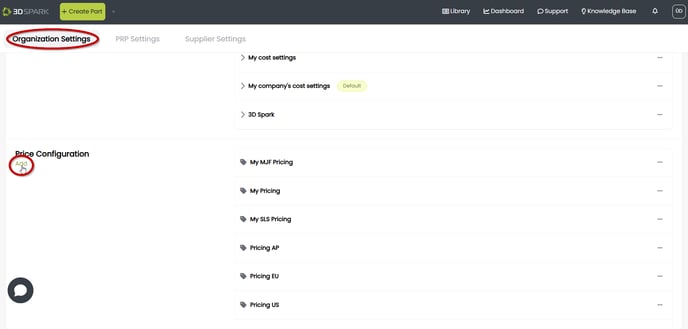
- Go to Settings > Organization Setting > Click Add under Price Configuration
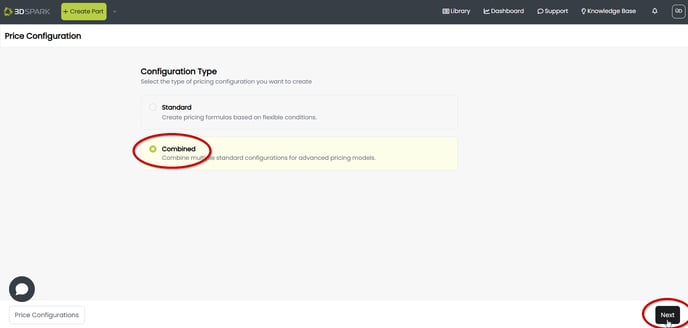
- Click on Combined and click Next
- Give your Combined Pricing a name, select the options such as Minimum Price per Part and if the price should be shown as a range (For details please see the guide for Standard Pricing)
Select the Standard Pricings you would like to combine (sum) in the Combined Pricing model. You can combine more than two standard pricings. Finally click Save.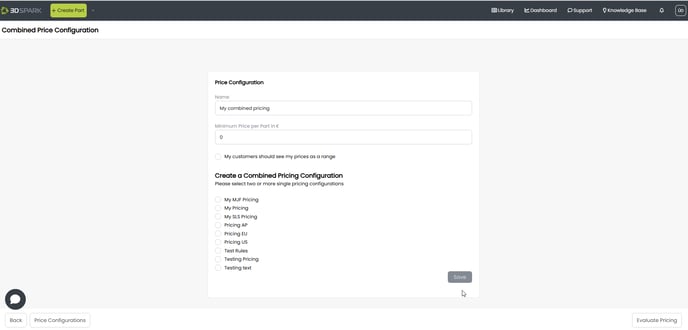
- Your Combined Pricing is ready to be used under a part > Analysis Page > Price details of a production option or Settings of a production option.
- Reminder: You can save a production option with this Pricing Configuration and other Settings as a Template or Analysis Profile: Click here for a guide