![Bildmarke_only_positive.png]](https://support.3dspark.de/hs-fs/hubfs/Bildmarke_only_positive.png?height=40&name=Bildmarke_only_positive.png)
3D Spark can provide precise build time estimates when your machines and materials are properly calibrated. The calibration process begins with benchmark data, which you can upload along with your benchmark parts and their corresponding build times—typically obtained from a slicer. Based on this information, 3D Spark will automatically determine the optimal parameters for the specific material and machine combination.
The 3D Spark Calibration Tool is an evolving feature that is consistently being improved. Despite its ongoing development, this tool successfully generates the appropriate material and machine parameters, ensuring accurate build time estimations. Continuous enhancements to the workflow aim to streamline the calibration process further.
Preparation of the Calibration Machine
- Add a machine with the name "Calibration [your machine name]". Give your machine's build envelope correctly. Fill in the mandatory fields (Fixed machine cost per job, Setup time, Unloading time, Machine idle time) with random values. At this stage, you may enter arbitrary values for any remaining parameters. [Click: How to add a new machine]
- Add a new material with the name "Calibration [your material + machine name]". Select the calibration machine as the "Default Machine". Give the correct "Minimal printable supportless overhang angle (horizontal-to-surface angle)". At this stage, you may enter arbitrary values for any remaining parameters. [Click: How to add a new material]
- Create a random part > Add a production option using this material > Go to Settings of this production option (under three dots next to the name of this production option) > Set up:
- Orientation Optimization Style: Off
- Shared Build Jobs: Lot Only
- Nesting Dimension: 2D or 3D based on your production reality.
For detailed guidance on how to add a part and analyze it, please refer to this article.
For detailed guidance on how to change analysis settings, please refer to this page.
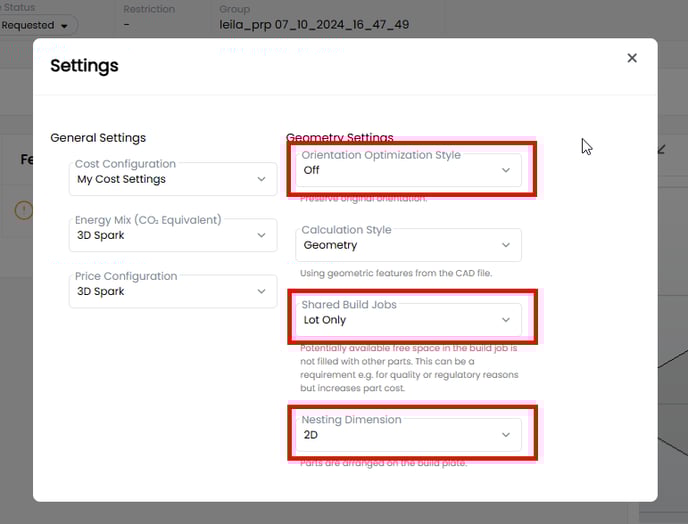
- Save this production option as a template. We will call this template as [CALIBRATION TEMPLATE] below. [Click: How to save a Template]
Preparation of the Benchmark Parts
- Prepare 8-10 print jobs for benchmarking. Ideally 6 parts that are typical parts, 1 small part and 1 large part. You can use the same parts with different lot sizes as benchmark data points.
- Get the print times of these jobs either from a slicer or from your print-logs. Please make sure that the parts were sliced or printed with the same parameter sets.
- In some cases, 3D Spark team will send you a dedicated spreadsheet to fill in your data. If this is not the case, please proceed with the next steps.
- Export the parts in .stl format in the same orientation that they were sliced.
- Upload the parts to 3D Spark (Go to Library > Groups > Add > Drag & Drop all files simultaneously).
Important note: If the orientation of the uploaded parts differs from their orientation in the slicer, the calibration tool will not function properly.
3D Spark Calibration Tool
3D Spark's integrated calibration tool will use your parts and their print times as benchmark data and automatically create your machine and material with the correct parameters, so that 3D Spark can estimate build times accurately.
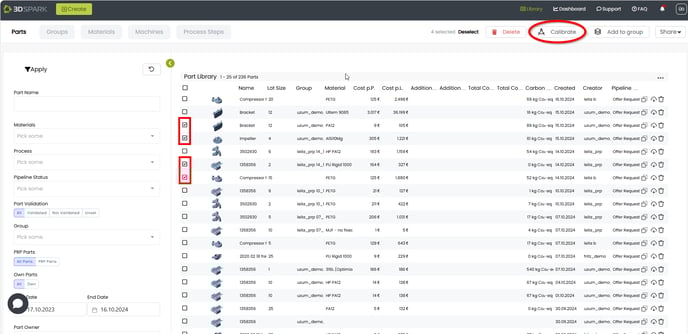
- Go to Groups > The groups's name > Select your benchmark parts > Click Calibrate
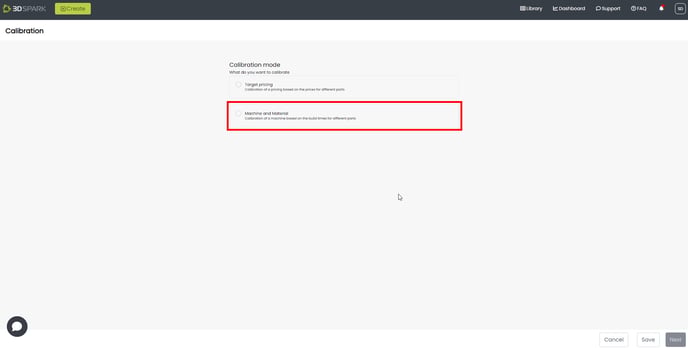
- Select "Machine and Material" and click Next
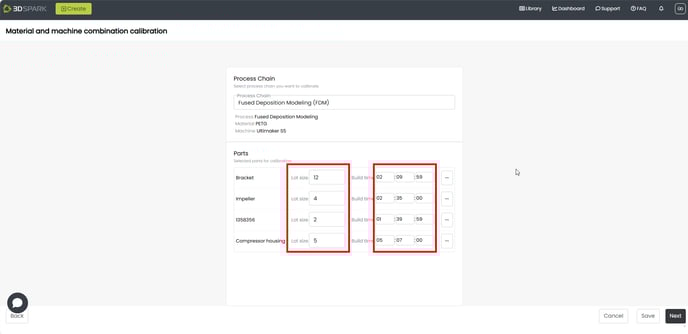
- Select the [CALIBRATION TEMPLATE] (that you have created above) under the Process Chain dropdown.
- Enter the lot size and the benchmark build time estimations. Input format: hh/mm/ss.
- Click Next and enter the constraints for the material and machine parameters.
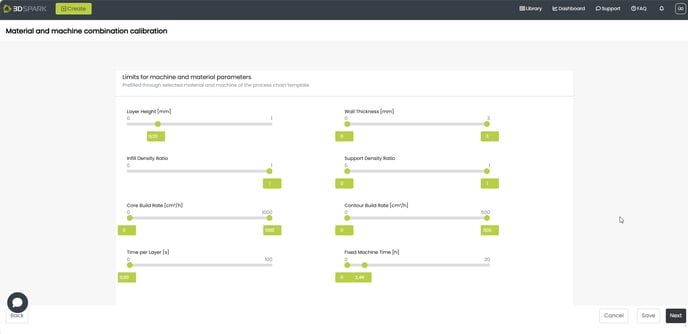
You can use the sliders or click on the boxes and edit the values.
Important Note: Do not enter the same values for the minimum and the maximum limits. For example, if the layer height is fixed at 0.2, you can enter min: 0.2, max: 0.20001.
The calibration tool will not function properly if the minimum and maximum values are identical, which may require you to restart the calibration process.
- Upon completion of the calibration process, you will be presented with a side-by-side comparison of the benchmark build times against the estimations provided by 3D Spark.
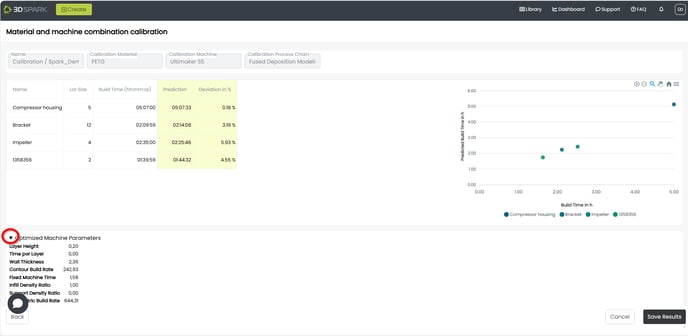 You can expand the Optimized Machine Parameters field and use these values to edit your existing materials and machines. Alternatively, you can create a new material/machine pair by clicking Save Results: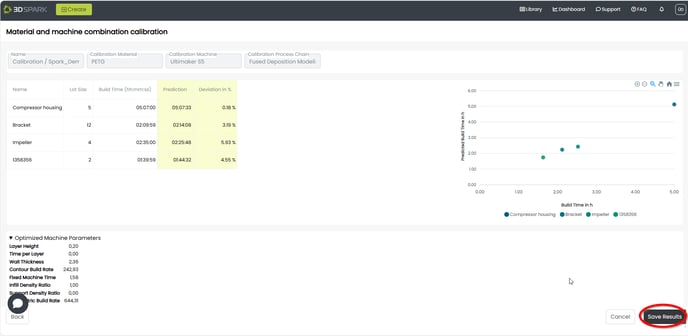
- Give a distinct name to your material and machine and click Save:
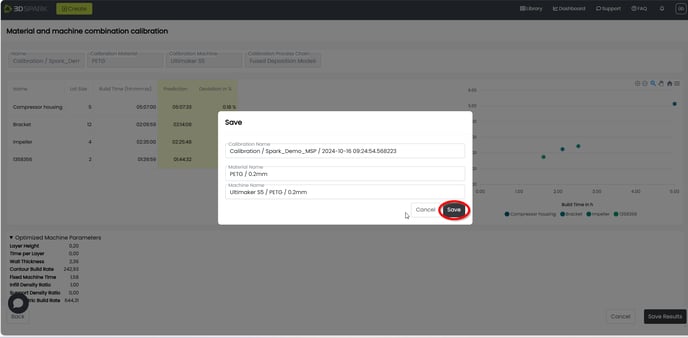
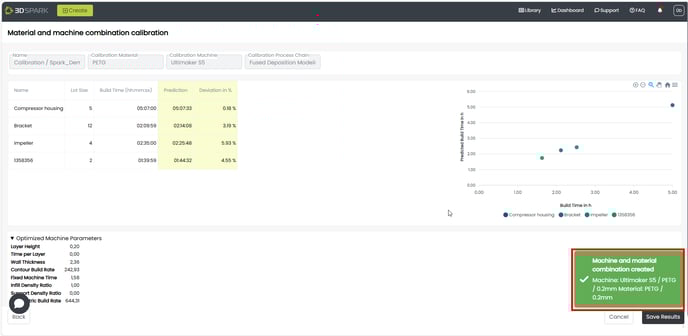
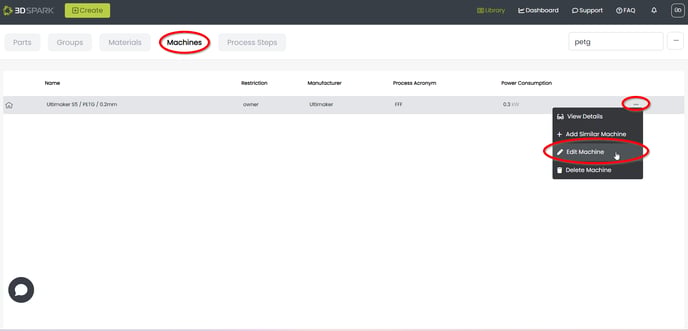
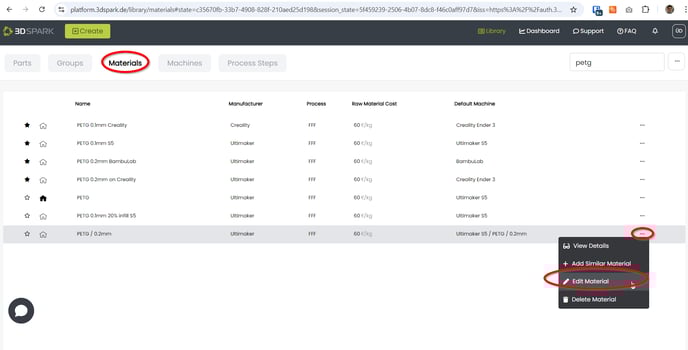
- You can now edit the machine and material that were just created. You might want to edit the material cost and machine hourly cost, for example. For that you can go to the Library > Machines or Library > Materials and Search for your item > Click on the three dots on the right > Edit its properties
Remember to set up your material as "In-house" so that your organization can use it: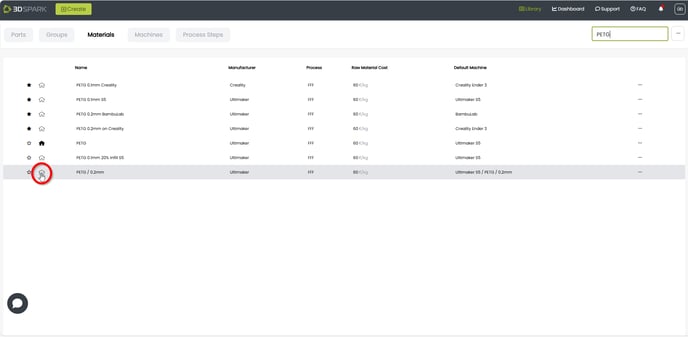
- Now that you have successfully calibrated your machine and material, you can incorporate this pair into a production option. Customize the production option by adding your specific process steps and settings, and then save it as a template for future use. [Click: How to save a Template]
- OPTIONAL: You can validate the calibrated materials and machines by following this guide: Validating 3D Spark Cost and Price Estimations