![Bildmarke_only_positive.png]](https://support.3dspark.de/hs-fs/hubfs/Bildmarke_only_positive.png?height=40&name=Bildmarke_only_positive.png)
Before you add/create new material, each material in 3D Spark is associated with a machine so we recommend creating your machines or checking if the associated machine exists in the library before creating any new material.
Follow the steps below to add new material:
- Go to Library --> Materials and click on “+ Add” button.

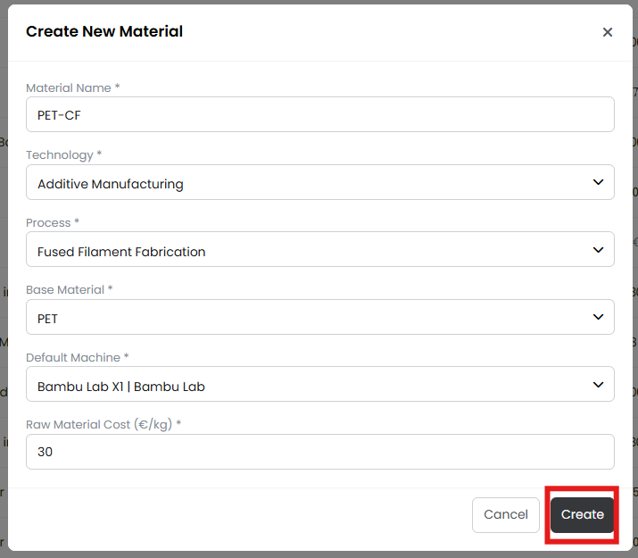
- A dialog box appears where the inputs are to be given as shown in the example picture below. Click on Create after filling in the data.
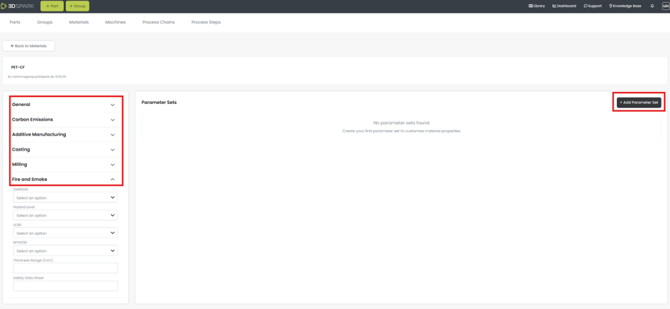
- After the creation, a new window opens where you can add more data from the drop-down menus available. You can also add Parameter Sets here.
- Go back to the materials library to see the new material added. Now you can start using this material for analysis.