![Bildmarke_only_positive.png]](https://support.3dspark.de/hs-fs/hubfs/Bildmarke_only_positive.png?height=40&name=Bildmarke_only_positive.png)
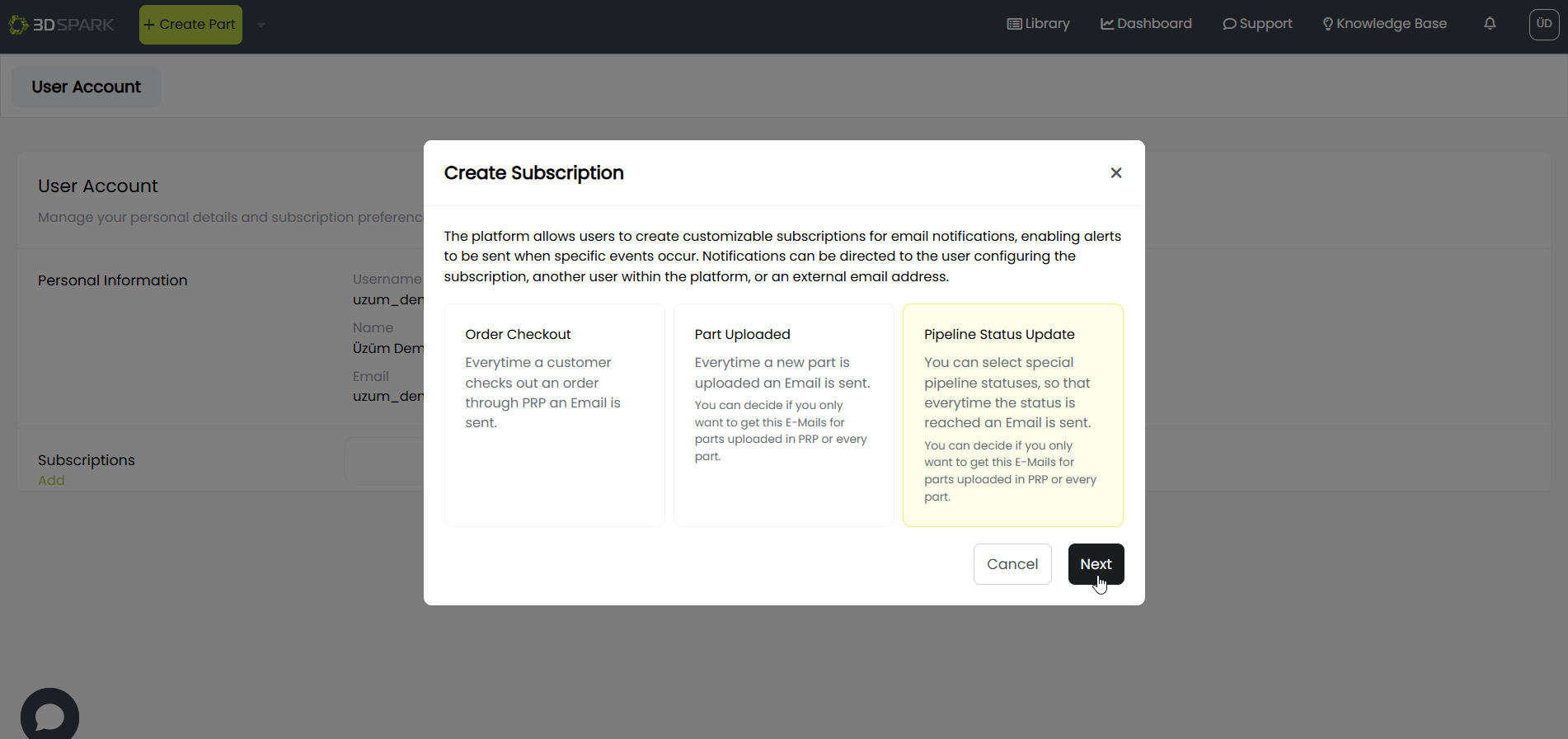
3D Spark can send email notifications based on specific actions you define. You can choose internal users or external email addresses to receive notifications when:
-
A user requests an offer through the Part Request Portal (PRP)
-
A part is uploaded by an internal or external user
-
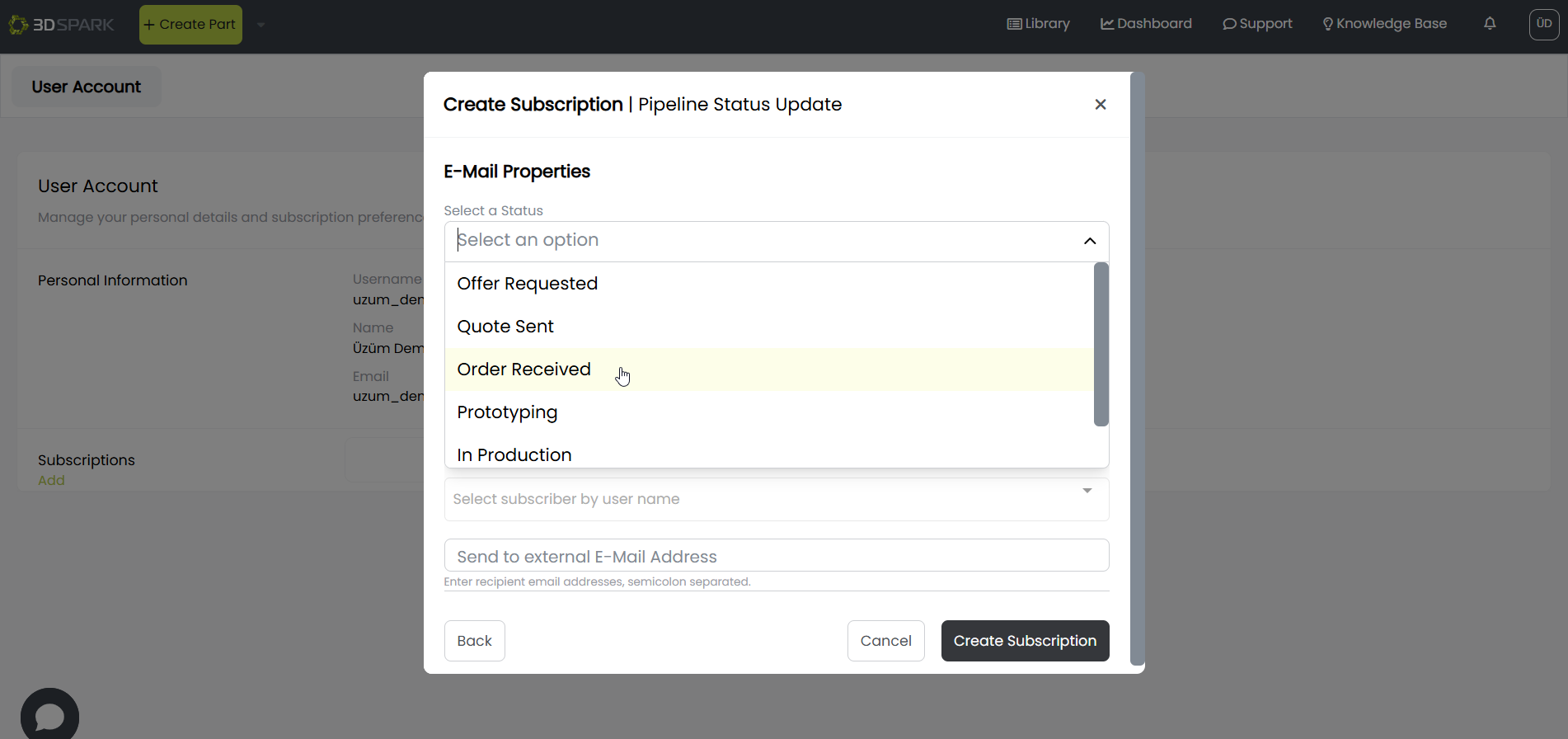
The pipeline status of a part changes (e.g., from "Order Received" to "In Production")
Follow the steps below to set up automatic email notifications.
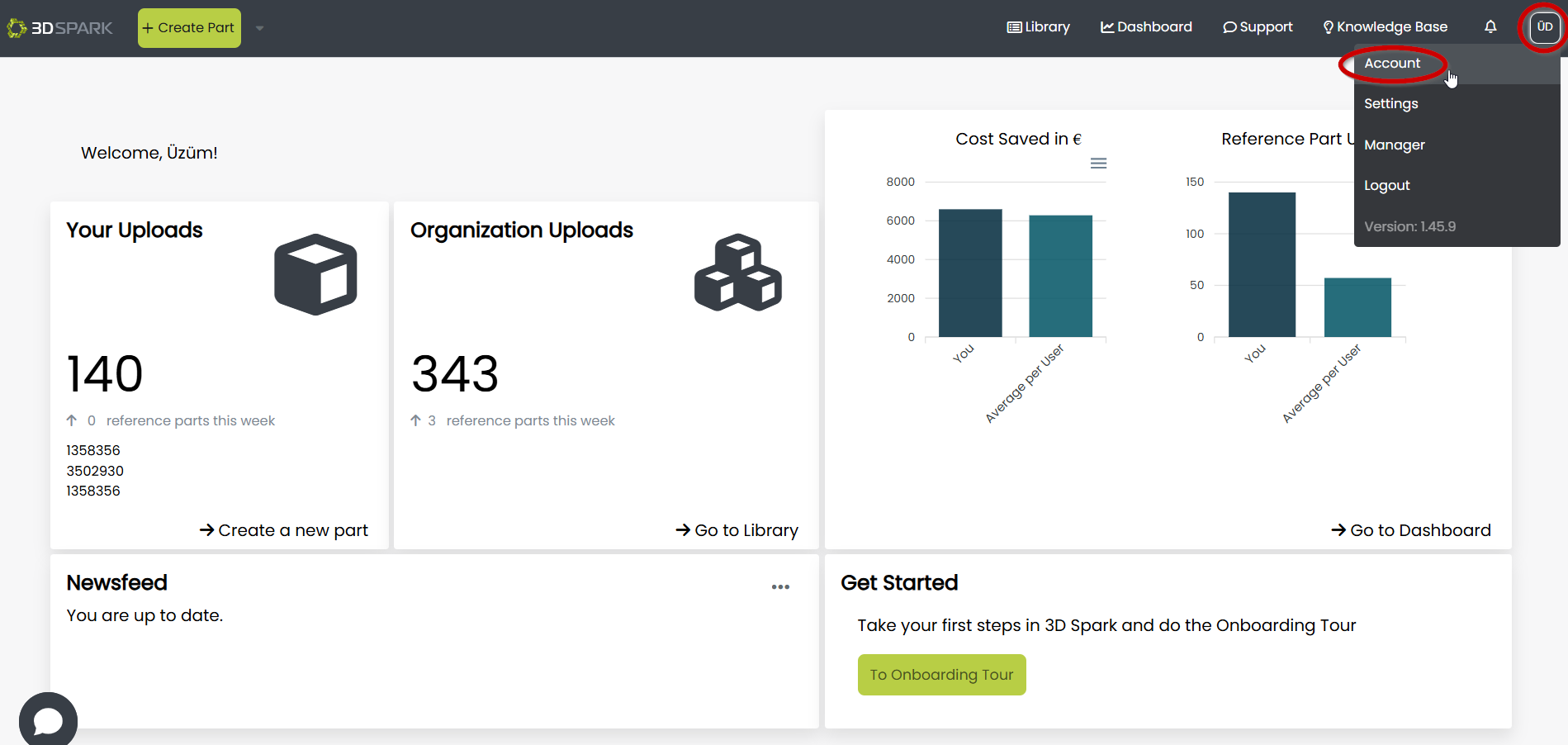
- Click your initials on top-right and select 'Account'
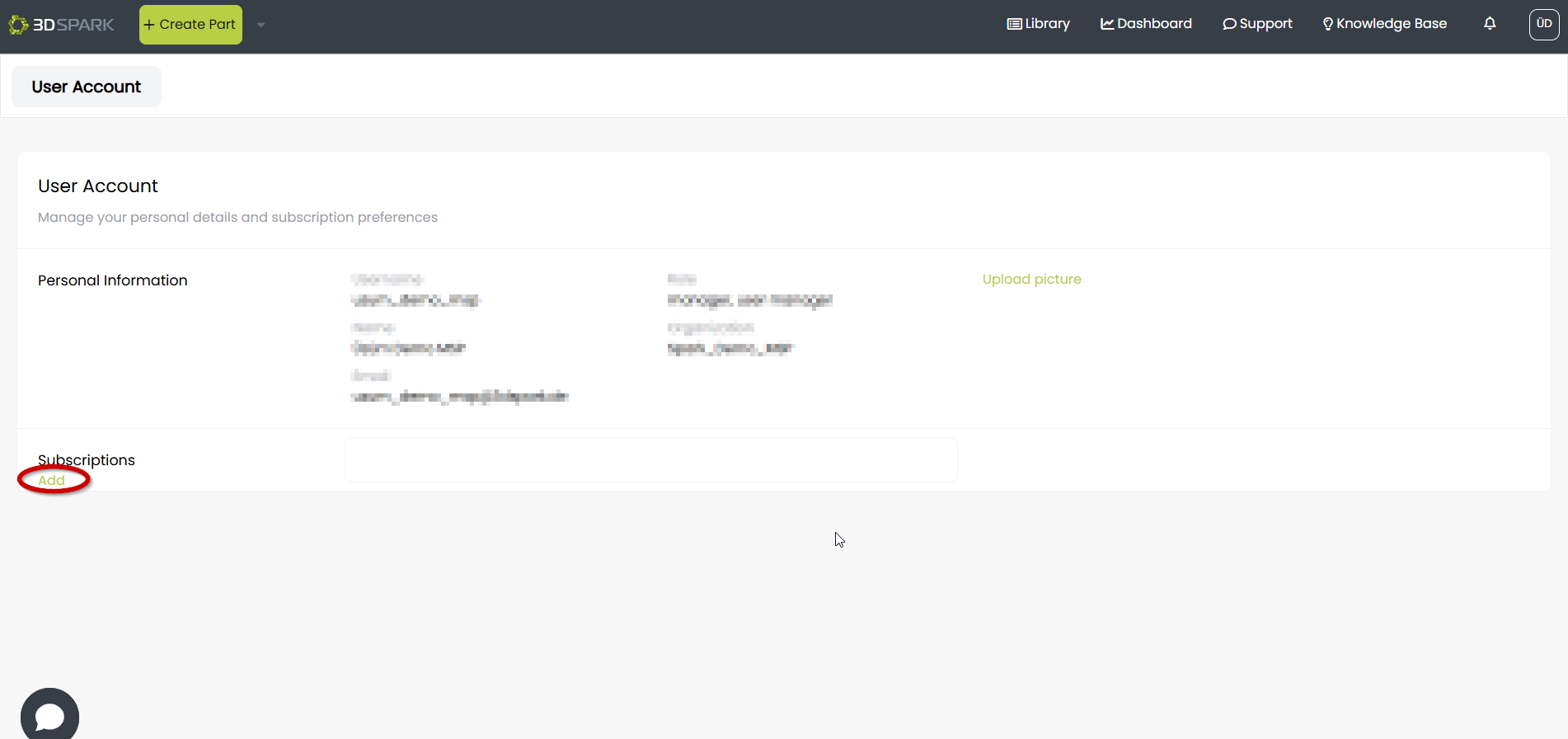
- Click 'Add' under Subscriptions
- Select the trigger action for the notification and click 'Next'. In this example, we select 'Pipeline Status Update'
- Select the Pipeline Status that should trigger the notification
👉 Learn more about the Pipeline States here. - You can now define:
- Email Subject
- If this notification is valid only for parts created via Part Request Portal (PRP)
- If you'd like to subscribe yourself
- Other subscribers from your organization (NOTE: If you do not see any users listed here, please contact 3D Spark support. You might need an additional permission)
- External email addresses that should be subscribed - Once you are finished, click 'Create Subscription'
- You can see any existing subscriptions under your initials (top-right) > Account